The power reboot
Did you ever have a USB port that seemed to not want to recognize a device? Try this. Turn off your computer. Now, unplug it (if you have a laptop, also remove the battery). Press and hold the power button for five seconds, then release. Plug the computer back in (if it’s a laptop, install the battery first) and power it up. Try your USB device again, it may work now. If your computer ever won’t turn on, try the same procedure.
If you have a smartphone that has been acting weird, you can try a similar procedure. Turn it off, remove the battery, press and hold the power button for five seconds, then release. Replace the battery and power on the phone.
Test your Internet connection speed and quality
Click here for test
Spam blocklists (acceptable for 100 users or less)
- bl.spamcop.net
- zen.spamhaus.org
- dnsbl.sorbs.net
Show hidden devices in Device Manager in Windows XP
- Open a command prompt
- Type set devmgr_show_nonpresent_devices=1 <ENTER>
- Type start devmgmt.msc <ENTER>
- From within Device Manager, select View – Show hidden devices
Speed up RDP connections in Vista or Windows 7
- Open a command prompt using Run As Administrator
- Type netsh interface tcp set global autotuninglevel=highlyrestricted <ENTER>
Access all your system configuration options in one quick, convenient location in Windows 7
- Open Control Panel as you normally would
- Type s in the search box (upper right corner) and behold all the options!
Hackintosh
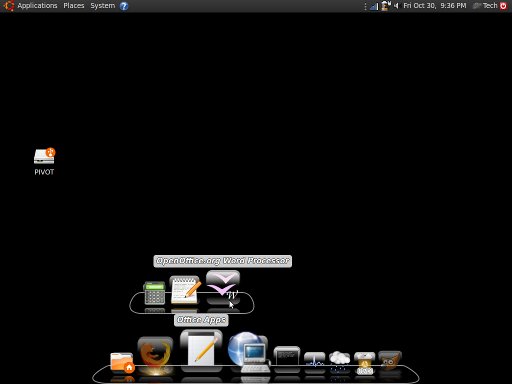
Got an old PC or laptop that you don’t use any more? Do you like to tinker with computers and have a little technical skill? Build yourself a hackintosh! I’ve provided the very basic steps below, the details can be found on the websites.
- Download and install the latest version of Ubuntu Desktop (link). Ubuntu is a popular, free Linux distribution. During the install, choose to use the whole disk. This will wipe your hard drive clean, so make sure you don’t need it any longer.
- Download and install a piece of free software called Cairo-Dock and its plug-ins (link).
- Pick a theme in Cairo-Dock. There will be one called MacOSX which is the closest to the dock on a Mac, but my favorite is one called Clear. Configure Cairo-Dock to open at start-up.
- Put your favorite apps and accessories on the dock and you’re done!